


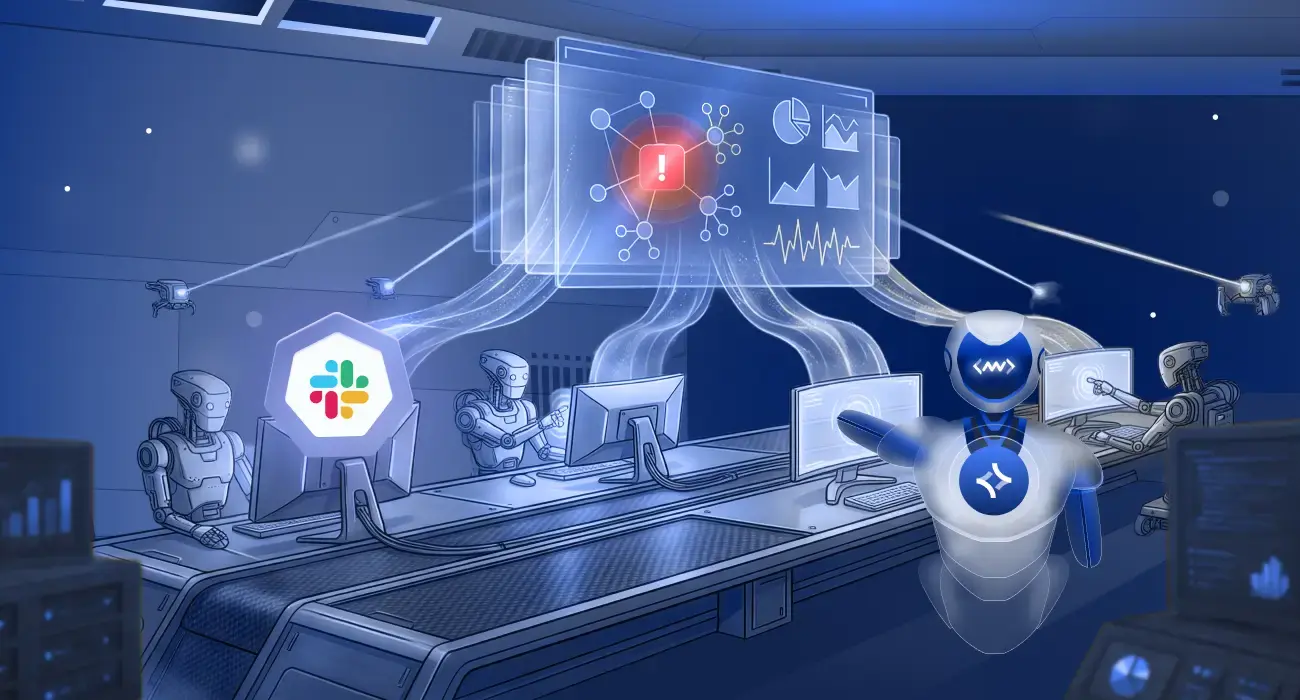
A production alert may arrive in Slack, but the investigation usually happens somewhere else.
You open your observability platform, search logs and traces, check recent deployments, identify the root cause, switch to the codebase to fix it, then return to Slack to update the team. That back-and-forth adds friction and breaks incident context.
Today, we’re launching Middleware OpsAI in Slack to bring more of that workflow into one place. When an alert lands in Slack, you can ask @Middleware to investigate the issue, find the root cause, answer follow-up questions, recommend a fix, and even raise a pull request with the proposed code changes.
And OpsAI isn’t limited to alerts. You can also ask Middleware questions about your observability data directly from Slack without first opening the Middleware platform.
Get the alert. Find the root cause. Fix the issue. All from Slack.
TL;DR
- Middleware OpsAI in Slack investigates alerts, posts root cause analysis, and answers follow-up questions inside the same thread
- Mentioning @Middleware in an alert thread scopes the investigation to that alert; mentioning it in any channel or DM starts a general conversation about your infra
- OpsAI can generate the code-level fix and raise a pull request for engineering to review and merge
- Internally, OpsAI resolves 50%+ of incidents automatically, with 70%+ auto-resolution across beta customers and an 80%+ improvement in on-call productivity
What’s new with Middleware OpsAI in Slack?
Middleware already lets you send observability alerts to Slack. With OpsAI, Slack becomes more than a notification destination. It becomes part of the investigation and remediation workflow.
When an issue occurs, your team can start from the alert itself. OpsAI can analyze available logs, traces, metrics, errors, events, and other observability context to understand what happened and what may need to change.
You can continue the investigation through the same Slack conversation, ask follow-up questions, review the suggested remediation, and move toward a code-level fix when required.
The idea is simple: if the incident starts in Slack, the investigation should be able to start there too.
Investigate directly from the alert
When a Middleware alert fires in Slack, it already carries the starting context: alert name, severity, the affected service and environment, and a link back to Middleware for more detail. Instead of opening another tab to search for the same problem, reply in the alert thread and mention @Middleware:
@Middleware Investigate this issue and find the root cause.
OpsAI scopes the investigation to that specific alert and analyzes the available logs, traces, metrics, errors, and events. It posts what it finds back into the same thread: the likely root cause, affected services or components, the relevant telemetry, and a recommended fix.
If the issue looks like it needs a code change, OpsAI flags the code-level change that may be needed too.
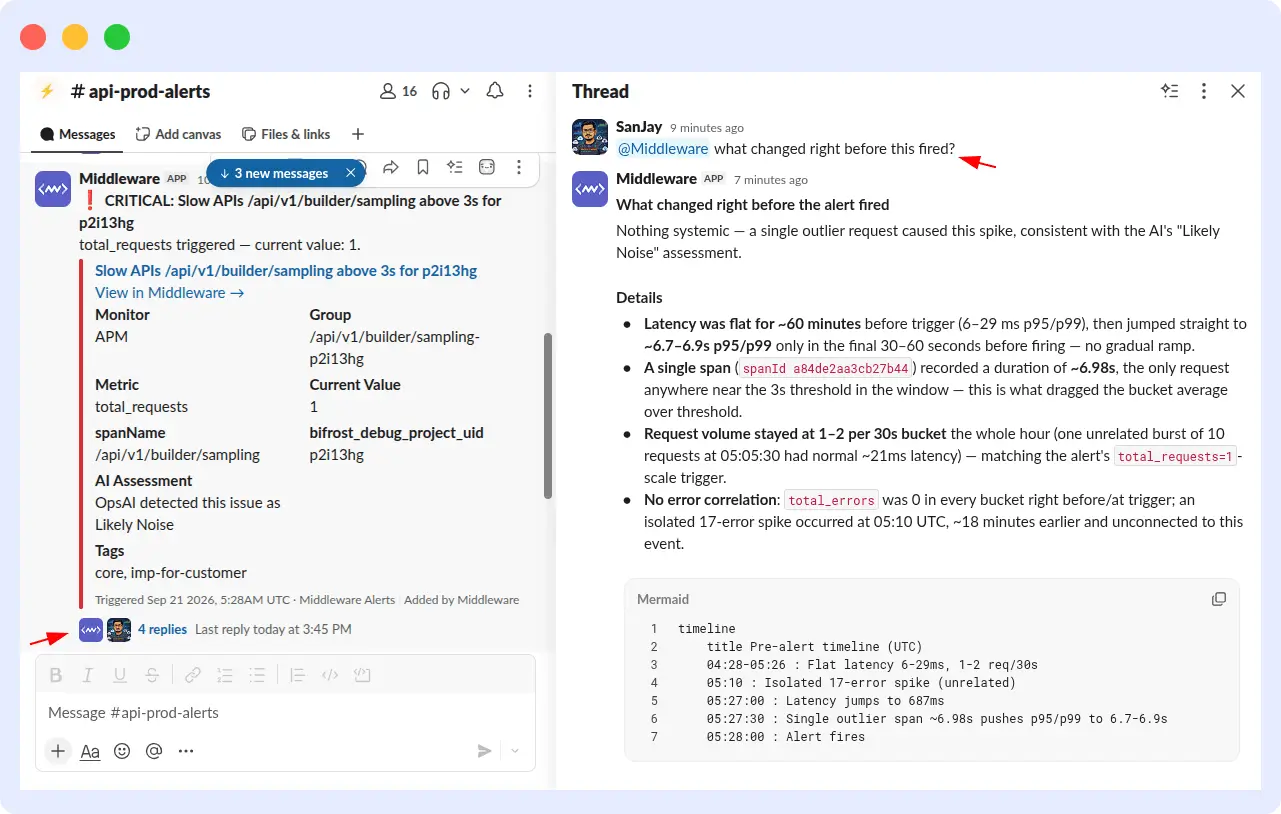
Because the alert, the investigation, and the discussion stay in one thread, everyone responding to the incident works from the same context instead of rebuilding it in a separate tool.
Ask follow-up questions before taking action
A root cause analysis often leads to more questions.
You may want to understand whether a deployment triggered the issue, which service is responsible, when the problem started, or what change could prevent it from happening again.
You can continue asking OpsAI questions in the same thread:
@Middleware Why did the error rate increase after the latest deployment?
@Middleware Which service is responsible for these failures?
@Middleware What changed around the time this issue started?
OpsAI processes one question at a time per thread, so if a second question arrives while the first is still running, it waits for that response before starting the next.
Because the conversation stays tied to the original alert, nobody has to re-explain the incident for every follow-up, which gives engineers room to validate the finding before deciding what to do about it.
This gives engineers room to understand and validate the issue before deciding what action to take.
From root cause to a pull request
Finding the root cause is useful, but incident response ultimately needs to move toward remediation.
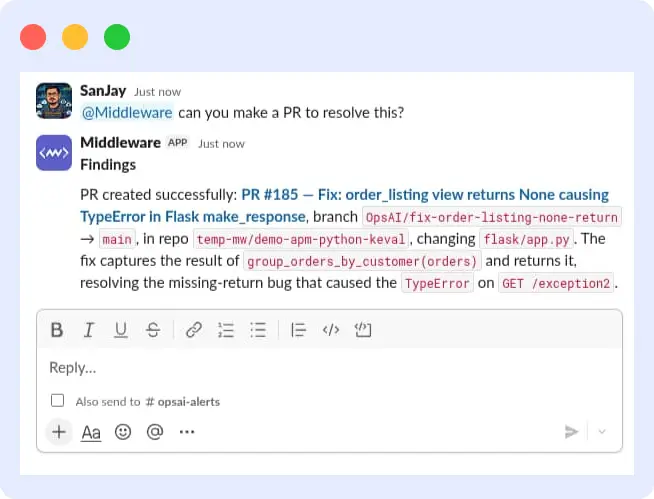
Once OpsAI understands the issue, it can recommend what needs to change. For code-level problems, it can go further by generating the proposed code changes and preparing a pull request for your engineering team to review.
@Middleware Raise a PR with the proposed fix.
The workflow can move from:
Alert → Investigation → Root Cause → Recommended Fix → Pull Request
Your engineers still remain in control of the final change. They can review the proposed code, run tests and required checks, and merge the pull request through the normal development workflow.
OpsAI helps reduce the manual work between understanding a production problem and getting a potential fix ready for review.
Keep the incident context connected
During a typical incident, information is spread across different tools. The alert is in Slack, telemetry is in the observability platform, and the application code is in the repository.
Engineers often move between these tools several times before returning to Slack to explain what they found. That means repeatedly finding the same service, error, trace, deployment, or piece of code.
Middleware OpsAI keeps those steps connected to the original Slack conversation. You can start with the alert, investigate the issue, ask questions, review the recommended solution, and move toward a proposed fix without repeatedly rebuilding the context.
The goal isn’t to replace every engineering tool with Slack. It’s to make the workflow between those tools more connected.
Ask anything about your observability data
OpsAI in Slack is not limited to active alerts or incidents.
You can start a conversation with @Middleware and ask questions about the observability data available in your Middleware environment.
For example:
@Middleware Show me the recent application errors.
@Middleware Which service has the highest error rate right now?
@Middleware Which services are experiencing high latency?
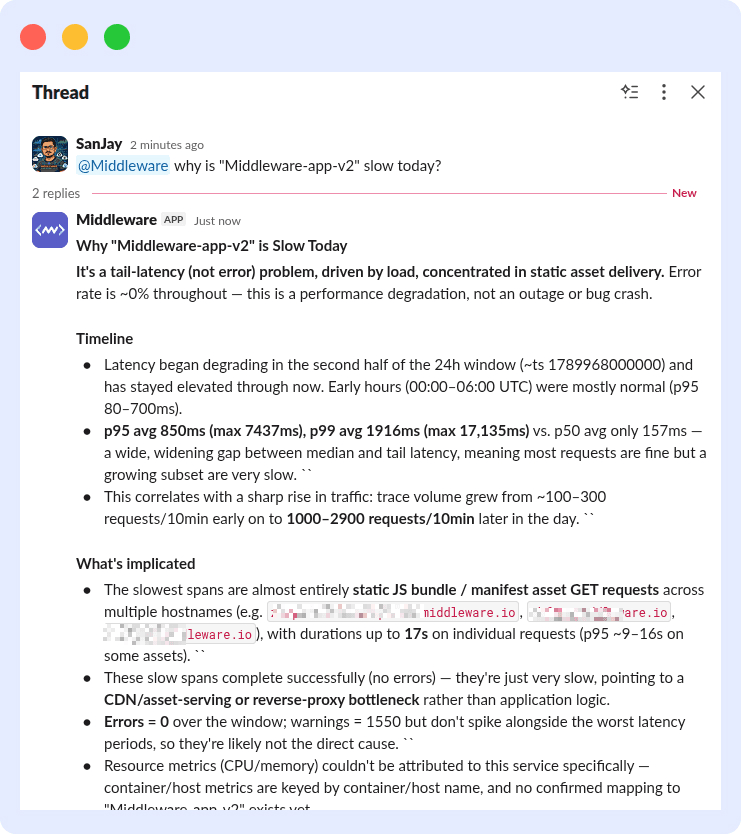
OpsAI can use available logs, traces, metrics, errors, events, and other observability context to investigate the question and return relevant findings directly in Slack.
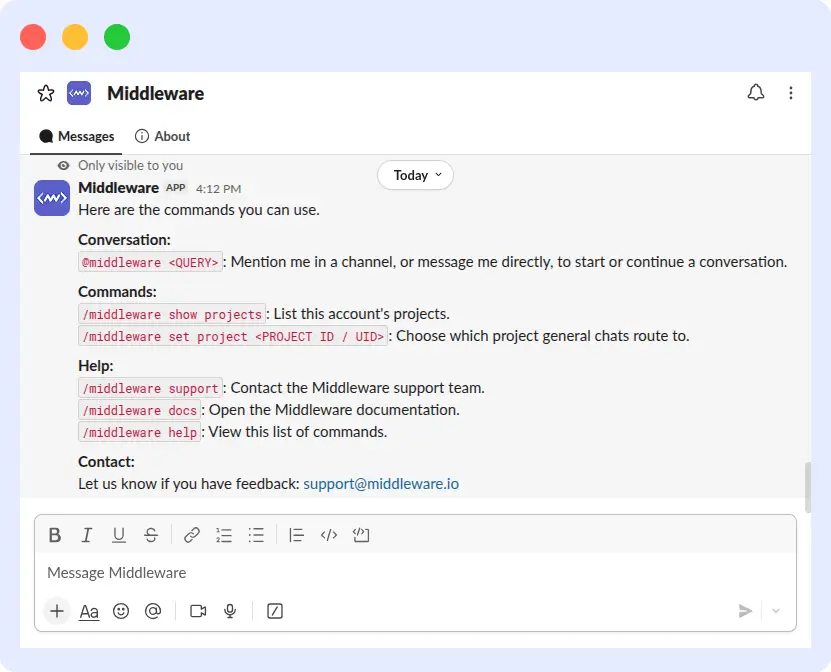
By default, general conversations route to your account’s default project; an admin can change that anytime from Middleware under Integrations → Slack, or from Slack itself with /middleware set project <PROJECT ID / UID>.
This is especially useful when you know what you want to understand, but don’t necessarily know which dashboard, query, or telemetry source contains the answer.
Instead of first figuring out where to look, you can start by asking the question.
For the full setup walkthrough, see the Slack integration guide in the Middleware docs.
A simpler incident response workflow
Middleware OpsAI connects more of the incident lifecycle to the Slack conversations your engineering team already uses.
- Detect: A production issue triggers a Middleware alert in the relevant Slack channel.
- Investigate: Mention @Middleware in the alert thread and ask OpsAI to investigate the problem.
- Understand: Review the root cause, affected services, supporting telemetry, and recommended remediation.
- Ask: Continue asking follow-up questions when you need additional context.
- Fix: Ask OpsAI to generate proposed code changes when the issue requires a code-level fix.
- Raise a PR: Create a pull request with the proposed changes for engineering review.
- Verify: Review and merge the change through your normal workflow, then continue monitoring the service.
This creates a more connected path from detection to investigation to remediation, while keeping engineers in control of the final decision and code change.
Security and permissions
Middleware follows a least-privilege model, and Slack shows every requested scope at install time.
OpsAI does not read general channel history or unrelated messages. In channels, it processes only messages that explicitly mention @Middleware. In DMs, it checks whether the message matches a slash command or an explicit mention, and doesn’t otherwise act on the content. Private channels require the bot to be invited before it can read or post there.
From detection to remediation, directly from Slack
Slack is already where many engineering teams coordinate when production issues occur. Middleware OpsAI brings the observability context and investigation closer to that conversation.
Instead of using Slack only to receive notifications, your team can use it to understand what happened, explore the root cause, ask additional questions, review a recommended solution, and move toward a pull request.
And when there isn’t an active incident, @Middleware can still help you explore what’s happening across your applications and infrastructure using your observability data.
The result is fewer disconnected steps between “something went wrong” and “we understand why and have a fix ready for review.”
Get the alert. Find the root cause. Ask questions. Raise the fix. All from Slack.
FAQs
What is Middleware OpsAI in Slack?
It’s an AI SRE assistant that turns alert notifications into real-time troubleshooting inside Slack. It uses your full observability data to run root cause analysis directly in the alert thread, and can raise a pull request with a proposed fix.
How do you fix a production bug using @Middleware in Slack?
Reply in the alert thread and mention @Middleware, asking it to investigate. It analyzes your logs, metrics, and traces, identifies the root cause, and can raise a pull request when asked.
Can OpsAI open a pull request directly from Slack?
Yes. Ask @Middleware Raise a PR with the proposed fix in the thread, and it commits the code change to your repository for review.
Does OpsAI read every message in a Slack channel?
No. It only responds when a message explicitly mentions @Middleware, and it doesn’t read or store general channel history.
Can I ask OpsAI a question in a direct message instead of a channel thread?
Yes. Send the app a direct message and mention @Middleware with your question to start or continue a general conversation. Following up inside an OpsAI incident thread still requires replying in that thread.
Can multiple people ask OpsAI questions in the same thread?
Yes, but OpsAI answers one question at a time per thread. If someone sends another question while the first is still processing, it waits for that response before starting the next.
Why isn’t @Middleware responding in my thread?
Check that you used an explicit @Middleware mention, that the bot has been invited to the channel (required for private channels), and that your Slack connection doesn’t need to be reconnected under Integrations → Slack in Middleware. For incident follow-ups specifically, auto-investigation also needs to be enabled for that project.