


False positive alerts cost teams more than most people realize. Teams routinely receive over 1,000 alerts a week, and only 2 to 5% are worth acting on, according to Middleware founder & CEO Laduram Vishnoi. We built false positive alert detection into OpsAI to fix that. It checks every alert as soon as it fires and tells you, in plain language, whether it’s a real problem or a false positive.
TL;DR
- OpsAI labels every alert it checks as Actionable, Likely noise, Needs review, or Not evaluated, before the notification goes out.
- You see the status in Email, Slack, or Microsoft Teams, as well as in PagerDuty, Opsgenie, and via webhooks.
- No alert is ever blocked. OpsAI adds context to the notification, but it always still gets sent.
- OpsAI explains why it flagged an alert as a false positive, so you can fix the rule and stop the same alert from firing again.
- Thumbs-up and thumbs-down feedback is tied to that one rule, so OpsAI gets more accurate on it every time you correct it.
What is false positive detection via AI Assessment?
False positive detection via AI Assessment is the official name for this OpsAI feature, and it does exactly what it sounds like: it uses AI to check each alert and tell you whether it’s real or a false alarm. It’s part of Middleware’s alerting platform.
When an alert fires, OpsAI reviews the breach, the rule’s past behavior and its settings and then attaches a verdict before the notification is sent. The goal is simple: help you focus on actionable alerts first, so real problems get investigated and resolved faster, without adding extra manual work.
Every alert OpsAI checks gets one of four statuses.
| Status | What it means | What to do |
| Actionable | The breach is big, has lasted a while, or matches a pattern that’s been a real incident before. | Investigate it like you normally would. Give it a thumbs-down if it turns out to be noise. |
| Likely noise | The breach is small or brief, the rule fires often, the threshold is too tight, or the value fixed itself. | Check the reason and suggestion when you hover over it. Tune the rule if it keeps happening. Thumbs-down if it was actually real. |
| Needs review | The signals are mixed, so OpsAI isn’t confident either way. | Review it yourself, then give feedback either way. |
| Not evaluated | Analysis was still running, the rule type isn’t supported, there wasn’t enough data, or analysis didn’t finish in time. | Nothing to do. The alert still went out normally. You can’t give feedback on this one. |
Hovering over any status shows why OpsAI reached that verdict, plus a tuning tip if there is one. This is how false positive alert detection helps you understand why an alert was triggered as a false positive and fix the alert rule to prevent similar triggers, instead of just ignoring the notification until it fires again.
How false positive detection via AI Assessment works
Analysis happens after an alert fires, but before the notification goes out, so the verdict is already there by the time you see it. The diagram below shows the full path, from the alert firing to the notification landing in your inbox.
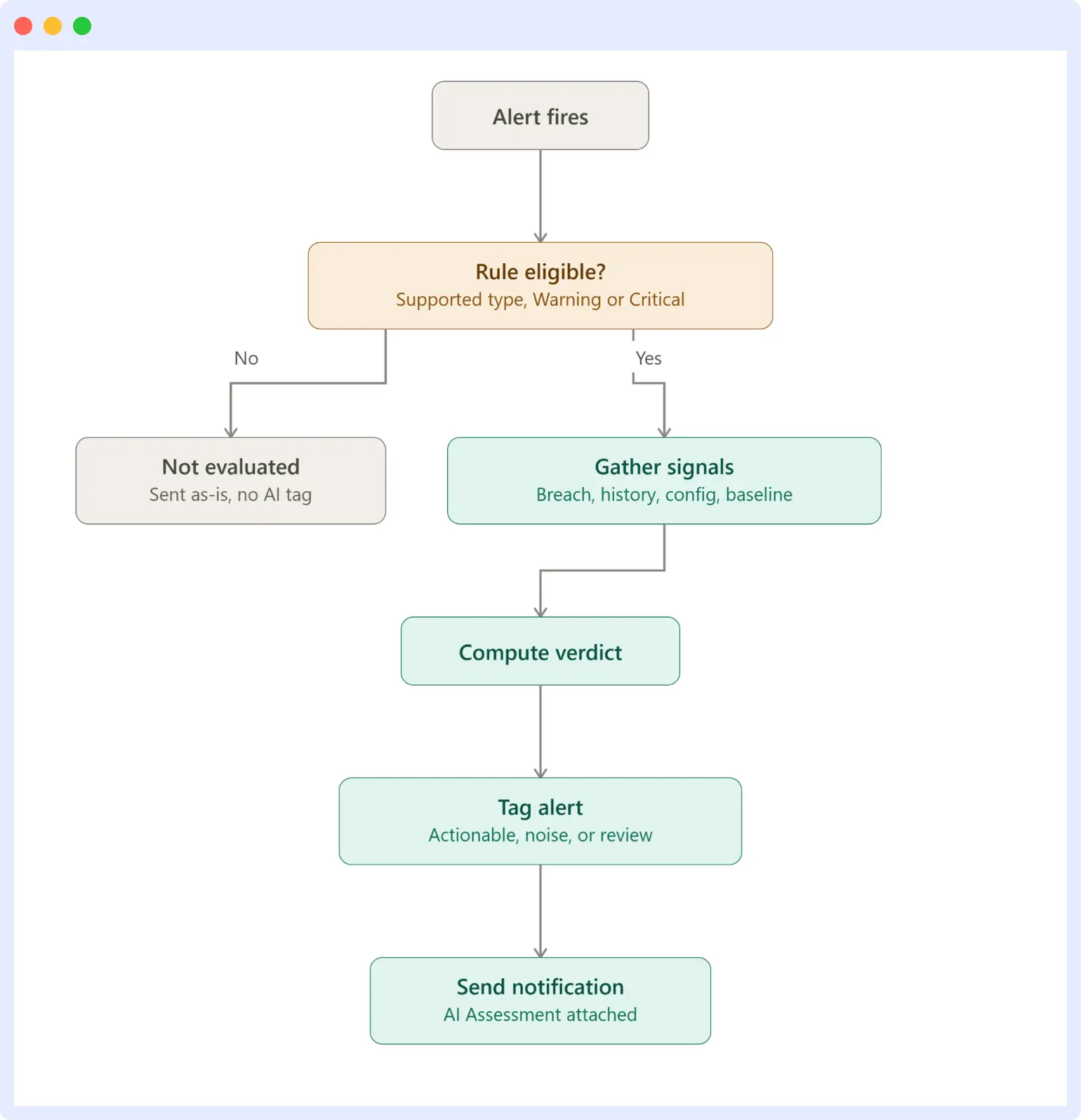
If the rule type isn’t supported or the trigger isn’t Warning or Critical, OpsAI skips the check, and the alert goes out marked Not evaluated, just as it would without this feature. Otherwise, OpsAI gathers context on the breach, works out a verdict, tags the alert, and sends the notification with the AI Assessment attached, all before you ever see it.
Why false positive alert detection helps engineers
The real payoff shows up the moment you’re triaging an alert, not just in a monthly report. Here’s what changes day to day:
- You know what to prioritize right away. You see Actionable or Likely noise in the notification itself, so you can decide instantly whether to act now or later, without opening a dashboard first.
- Less digging by hand. Figuring out if an alert mattered used to mean pulling up the rule’s history, its threshold, and the surrounding data yourself. OpsAI does that work before the notification even arrives.
- It points out rules that need fixing. A rule that keeps coming back, likely noise, is telling you its threshold or logic needs work, not just that this one alert can be ignored.
- It helps during big incidents. When one failure triggers a dozen alerts at once, the AI Assessment status helps you spot the one that actually matters rather than treating them all the same.
For a deeper look at handling alert storms like this, see our guide on alert correlation for distributed microservices.
- Nothing is hidden. Every alert is still sent and appears in your alert list, so you keep a full record and can always overrule OpsAI’s read with your own judgment.
None of this changes how your alerts already work. It just adds a layer of context on top of alerts you’d have gotten anyway, and since nothing is ever blocked, you never risk missing a real incident.
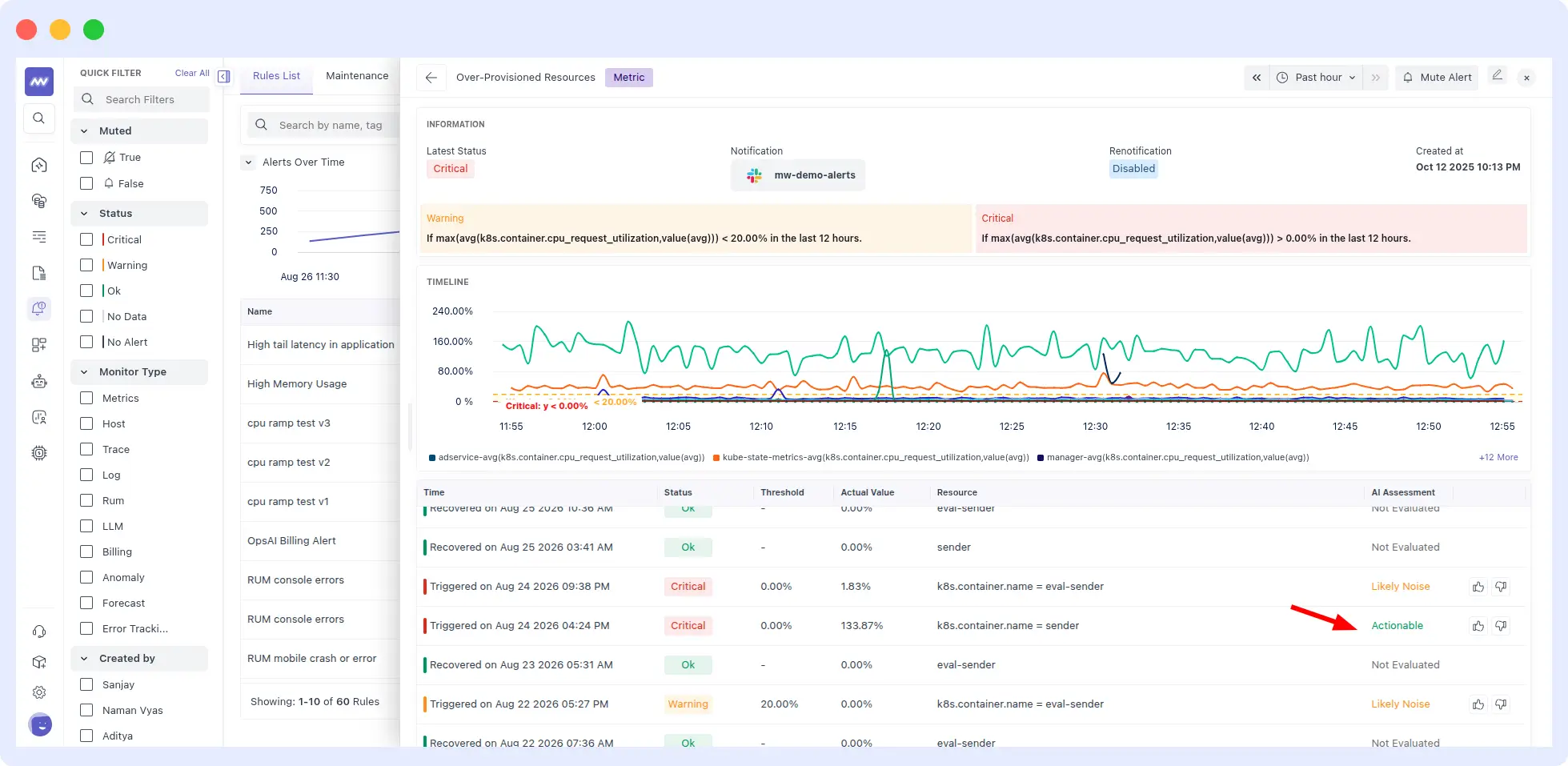
Where the AI Assessment status appears
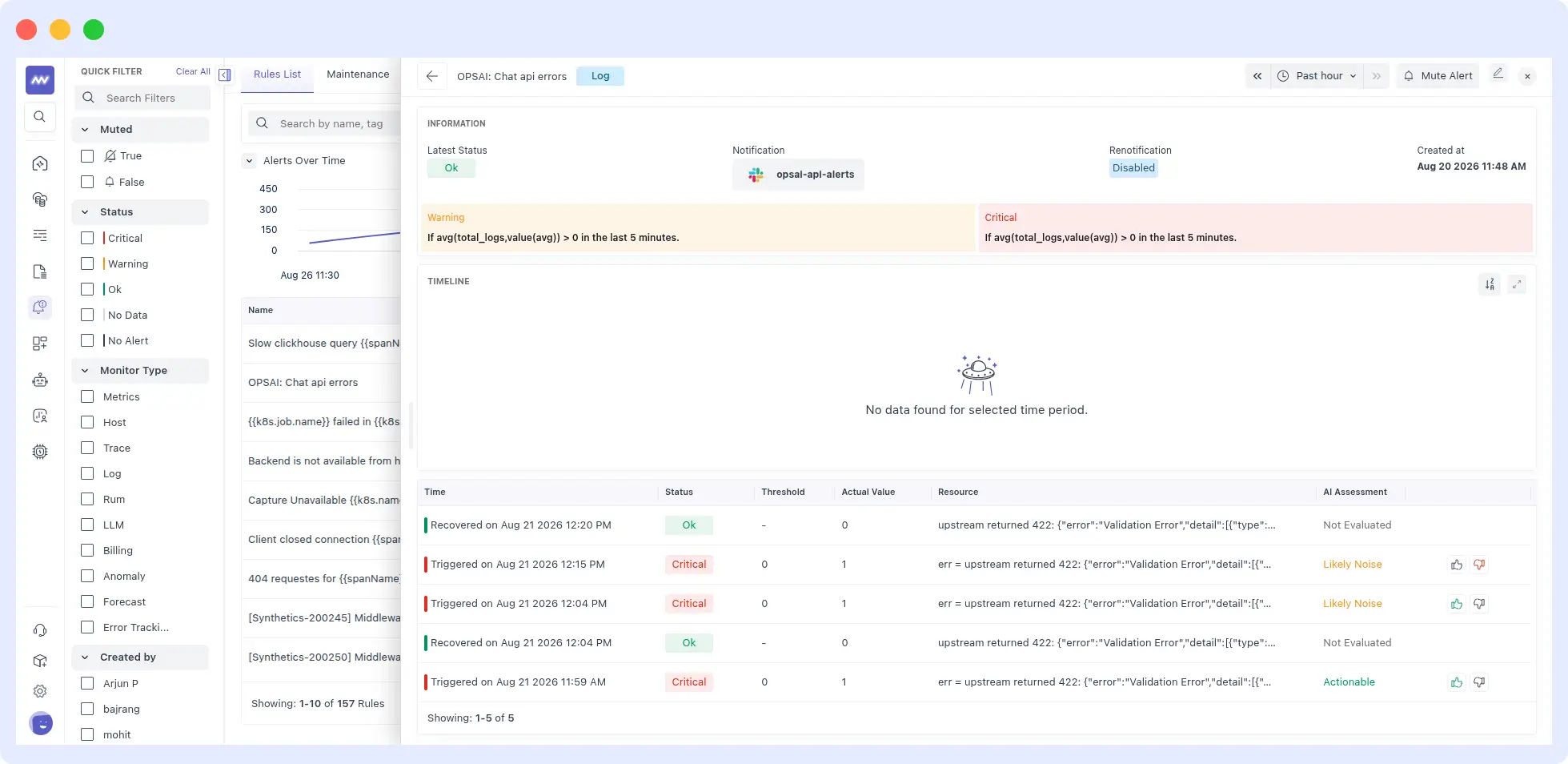
Every past trigger for a rule shows its own AI Assessment, with thumbs-up and thumbs-down controls right in the timeline.
You get the false-positive or actionable alert status directly through Email, Slack, or Microsoft Teams notifications for instant updates, so you can triage right where your team already works.
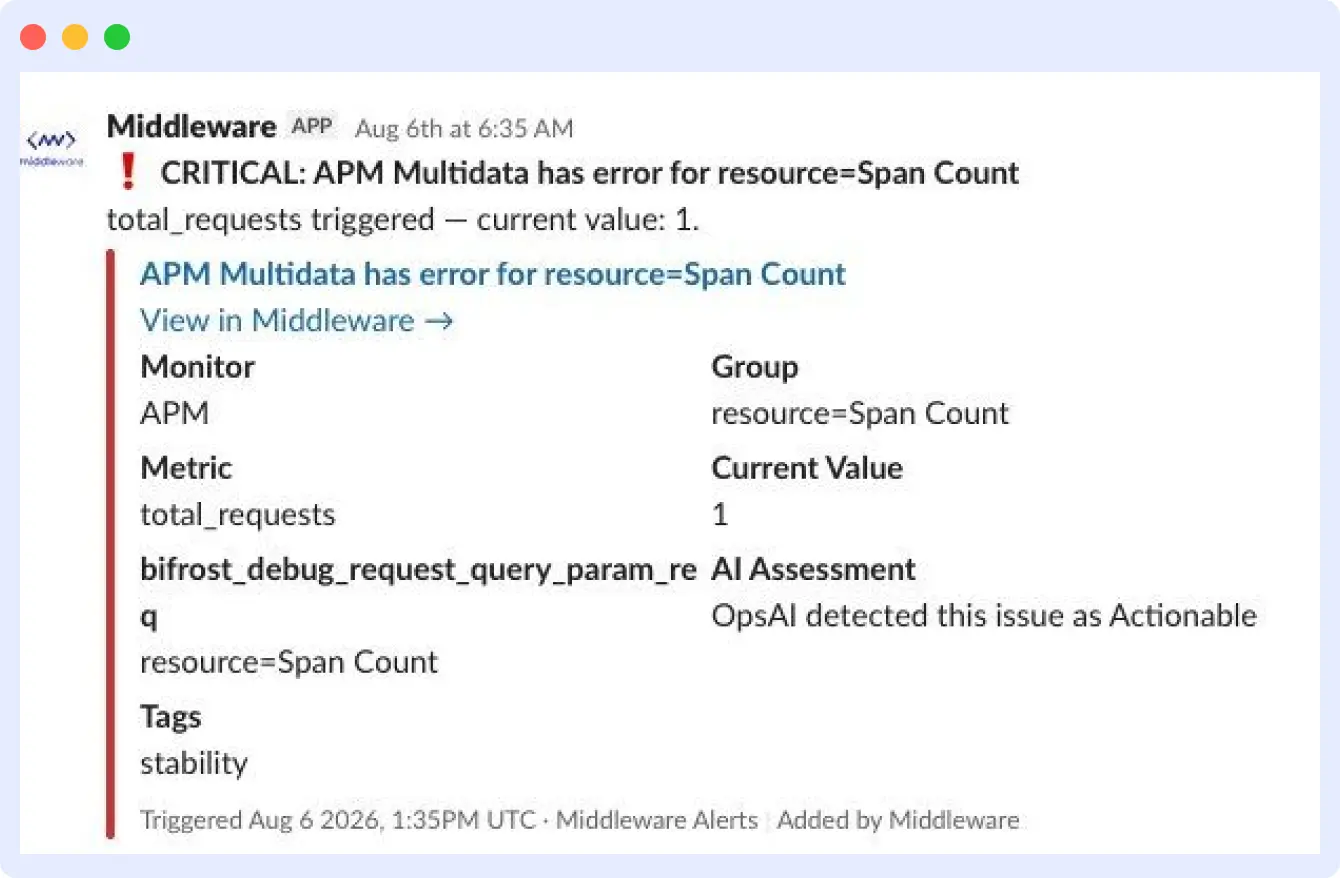
- Slack, Microsoft Teams, and email show an AI Assessment line, for example, “OpsAI detected this issue as Likely Noise.”
- PagerDuty and Opsgenie get an ai_assessment detail added to the incident.
- Webhooks and custom messages can use {{opsai_analysis}} for the short status or {{opsai_assessment}} for the full sentence.
Alerts marked Not evaluated go out without an AI Assessment field, since there’s no verdict to show.
False positive alert detection in a live alert
Here’s a real Slack notification from a Middleware workspace. An APM rule fired critical on span count, and the AI Assessment field sits right next to Monitor, Group, and Current Value:
The same thing happens in email. This example shows a page-load-time rule that crossed its 5-second threshold, marked Actionable, with the trend graph included in the same notification:
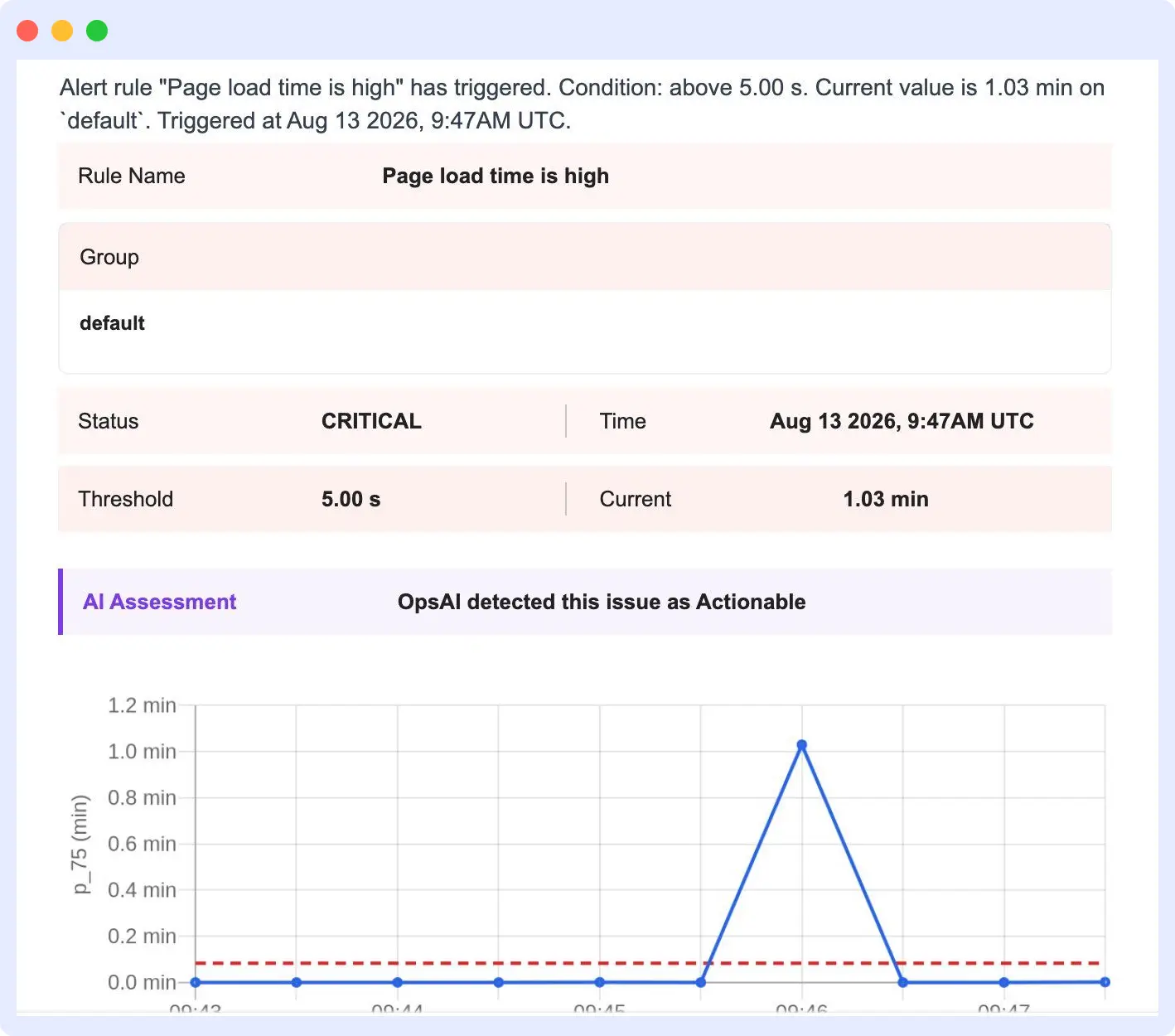
In both cases, the verdict arrives with the alert. There’s no separate dashboard to check and no extra login needed.
Our guide on how OpsAI resolves production issues covers that side in more depth.
When false positive alert detection runs
OpsAI only checks an alert when all of these are true.
- The rule is a supported type: Metrics, Host, Logs, APM (Traces), RUM, LLM, Error Tracking, Anomaly, or Forecast.
- The alert is a Warning or Critical trigger. Recovery and No Data alerts are never checked and always go out as-is.
- The alert rule has at least one notification channel set up, such as Slack, Email, or a webhook.
- False-positive detection is enabled for the account.
Analysis occurs after the alert fires and before the notification goes out, so the status is ready in both the alert list and the notification. If the check takes too long or the AI service is briefly down, the alert still goes out on time, just marked Not evaluated. Getting the alert to you always comes first.
How OpsAI determines whether an alert is a false positive
OpsAI doesn’t just look at the one data point that crossed the threshold. It weighs five things for every alert.
- Breach size. How far past the threshold the value went, and whether that’s a small or a big deal.
- Surrounding data. How the metric behaved over a window three times wider than the rule’s own window, which helps distinguish a one-off spike from a real, lasting shift.
- Alert history. How often this rule and group fired in the last 24 hours, 7 days, and 30 days, how often it’s flapped, and when it last resolved.
- Rule setup. The threshold, operator, time window, and other settings on the rule itself.
- Anomaly and forecast details. For anomaly rules, how far off the baseline the points are. For forecast rules, how far the actual values sit from the predicted range.
If a near-identical alert fires again on the same rule, with a similar breach and frequency, OpsAI reuses its last verdict instead of starting over. When that happens, the hover reason tells you so. To see how this same kind of correlation plays out at the incident level, our post on MTTR vs. MTTD covers how faster detection and diagnosis speed up the whole response.
How feedback improves false positive detection accuracy
Every AI Assessment status has thumbs-up and thumbs-down buttons. Use them to confirm or correct the verdict.
- On an Actionable alert, a thumbs-up confirms it’s real; a thumbs-down marks it as noise.
- On a Likely noise alert, a thumbs-up confirms it’s noise; a thumbs-down marks it as real.
- On a Needs review alert, a thumbs-up marks it as actionable; a thumbs-down marks it as noise.
Your feedback is saved against that specific rule. The next time a similar alert fires on it, OpsAI factors in your correction, and the hover reason will mention that a teammate already reviewed a similar case. Feedback on one rule never affects any other rule. Not evaluated alerts don’t have a feedback option, and there’s no hover reason either, since no verdict was ever reached.
Best practices for reducing alert noise
The AI Assessment status helps in the moment. The reason behind a repeated status helps you fix things for good. A rule that keeps coming back as Likely noise for the same reason is telling you exactly what to change.
- If a rule keeps reporting a small breach, widen the warning or critical threshold to match the value that actually needs attention.
- If a rule flaps back and forth, raise the data-points-for-alert setting so that a single noisy sample can’t trigger it.
- If a rule often comes back as Needs review, the underlying query is probably too broad. Narrow it with an aggregation group or a tighter filter.
- If a rule keeps getting thumbs-down feedback, treat it as a sign to fix the rule rather than overriding the verdict every time.
FAQs
What is false positive detection via AI Assessment?
It’s the OpsAI feature that checks every alert and labels it Actionable, Likely noise, Needs review, or Not evaluated, so you can focus on real issues first.
Does false positive alert detection block alerts?
No. Every alert is still sent, regardless of its verdict. OpsAI adds an assessment to the notification, but it never decides whether the notification goes out.
Which alert types support AI Assessment?
Metrics, Host, Logs, APM (Traces), RUM, LLM, Error Tracking, Anomaly, and Forecast alerts, as long as the trigger is Warning or Critical and the rule has a notification channel set up.
Which alert types are not supported?
Billing alerts aren’t covered by false positive detection. Recovery and No Data alerts are also never checked, regardless of the rule type, and always go out as-is.
Where does the AI Assessment status show up?
In the alert list, and directly in Email, Slack, and Microsoft Teams notifications. PagerDuty and Opsgenie get an ai_assessment field on the incident, and webhooks can use the {{opsai_analysis}} or {{opsai_assessment}} placeholders.
How do I fix a verdict I disagree with?
Use the thumbs-up or thumbs-down button next to the status on any Actionable, Likely noise, or Needs review alert. Your correction applies to that specific rule and improves how it’s judged next time.
Why is an alert marked Not evaluated?
This happens when the analysis is still running, the rule type isn’t supported, there isn’t enough history to judge from, or the AI service doesn’t respond in time. The alert still goes out as normal either way.
For the full technical reference on setting up alert rules, thresholds, and notification channels, see Middleware’s documentation on creating alerts and false positive detection via AI Assessment.