



Docker status isn’t one thing. When a container looks off, you’re never sure whether to check the daemon, the container itself, or the app running inside it, and there’s no single docker status command that just tells you. This guide gives you the exact command for each of the three status types, so you can find what’s actually broken in under a minute.
Key takeaways
- Docker has no single docker status command; you check the daemon (docker info), containers (docker ps), or health (docker inspect) separately.
- A container moves through six states: Created, Running, Paused, Restarting, Exited, and Dead.
- Before debugging your own setup, check status.docker.com to rule out a Docker Hub outage.
- Middleware brings container, daemon, and health status into one dashboard instead of three separate commands.
- Running doesn’t mean healthy: a container can pass its process check while the app inside it is unresponsive.
- Exit codes explain why a container stopped: 137 means an out-of-memory kill, 143 means a graceful stop.
Is Docker down, or is it just you?
Most Docker problems are local, not a Docker Hub outage. Before you debug your own setup, it takes only a few seconds to rule out a wider problem.
There are two things people usually mean when they ask, “Is Docker down?”
The first is a Docker Hub outage. Docker Hub is the registry where Docker images are stored and pulled from. If it goes down, you can’t pull or push images, but your running containers keep working. Check the official Docker status page for active incidents and recent disruptions. If there’s an incident listed, the problem is on Docker’s side, and you just have to wait for it to clear.
The second is a local daemon or container problem. This is much more common. Docker Hub is working, but your Docker commands fail because of an issue with the Docker daemon or one of your containers.
Here’s a quick check. Run:
docker infoIf docker info returns information about your Docker installation, the Docker daemon is running. The problem is likely with a container, your application, or another part of your Docker setup. If it returns a connection error, the daemon isn’t running or your client can’t connect to it. On Linux, you can confirm with:
systemctl status dockerStart with the Docker status page to rule out an outage. Then run docker info or systemctl status docker to check your local setup. These two checks tell you whether Docker itself is down or the problem is on your end. Once you know which side it’s on, you know where to look next.
What is Docker status?
Docker status is the current state of a Docker container, the Docker daemon, or the app inside a container. Together, these three make up what people mean by “Docker status,” and knowing all three helps you spot problems fast.
There’s no docker status command. Docker uses a different command for each type of check. When people say “Docker status,” they usually mean one of these three types.
- Container status: Shows the current state of a container, such as Created, Running, Paused, Restarting, Exited, or Dead. This is the container status you’ll check most often, and each state has its own meaning.
- Docker daemon status: Shows whether the Docker Engine is running. The Docker daemon is the background service that manages containers. If it isn’t running, Docker can’t start, stop, or manage containers.
- Container health status: Shows whether the application inside a container is working properly. A container can be running even when the application inside it has stopped responding. Health checks detect those issues.
The table below shows the most common Docker status checks and the commands used for each.
| Status type | Command |
|---|---|
| Running containers | docker ps |
| All containers, including stopped ones | docker ps -a |
| Docker daemon status | systemctl status docker (Linux) or docker info |
| Container health status | docker inspect <container_name_or_id> |
What are the different Docker container states?
A Docker container moves through several states during its lifecycle: Created, Running, Paused, Restarting, Exited, and Dead. Knowing which state it’s in tells you whether it’s running as expected or needs your attention.
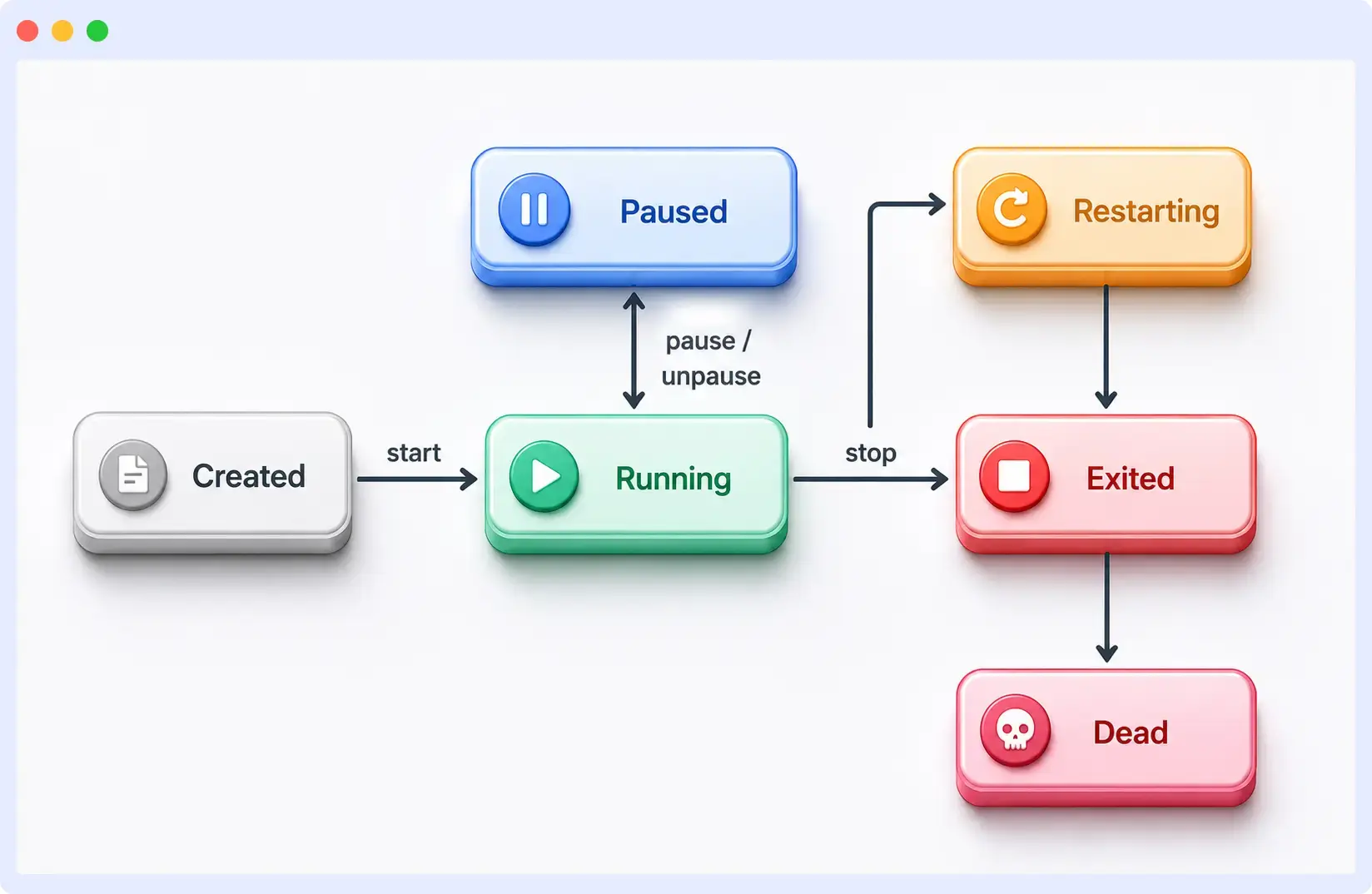
Every container follows the same basic lifecycle. You create it, start it, and let it run. Along the way, it may pause, restart, or stop. Knowing its current state helps you understand whether everything is working as expected or if you need to investigate further.
Created
A container is in the Created state when Docker has created it from an image but hasn’t started it yet. The container exists, but Docker hasn’t started its main process.
You’ll usually see this state when you use docker create instead of docker run, or when a container is prepared ahead of time in a CI/CD pipeline.
To start the container, run docker start <container>.
Running
A container is in the Running state when its main process is active. This is the state you want for containers that are serving requests, processing jobs, or running background tasks.
However, Running doesn’t always mean the application is working correctly. The container’s main process can still be running even if the application inside isn’t responding to requests. For example, a web server can appear as Running while returning errors for every request. Docker health checks help detect this situation, which we’ll cover later in this guide.
Paused
A container is in the Paused state when its processes have been frozen with docker pause. The container will stay in memory, but nothing inside it will run until you resume it.
A paused container is different from a stopped container. A paused container resumes where it left off when you run docker unpause. A stopped container shuts down completely and must start again.
Restarting
A container is in the Restarting state when Docker is trying to start it again, usually because of a restart policy.
This state often indicates a problem. If an application keeps crashing and Docker is configured to restart it automatically, the container can get stuck in a restart loop. Checking the container logs is usually the fastest way to find the root cause.
Exited
A container is in the Exited state when its main process has finished and the container has stopped.
An exited container isn’t always a problem. Some containers are designed to finish their work and exit normally. Others stop because the application crashed or encountered an error. You can use the container’s exit code to understand why it stopped. For example, an exit code of 0 usually means the container completed successfully, while non-zero exit codes often indicate an error.
Dead
A container is in the Dead state when Docker couldn’t fully stop or remove it. The container can’t run anymore, and Docker can’t clean it up automatically.
This state is rare, and it points to a deeper issue, such as a Docker daemon problem or a storage driver issue. Restarting the Docker daemon and removing the container manually usually clears it.
The table below shows Docker container states at a glance.
| State | Meaning | Scenario | Next step |
|---|---|---|---|
| Created | The container exists but hasn’t started yet. | docker create | Start it with docker start. |
| Running | The container’s main process is running. | docker run or docker start | Verify the application is healthy. |
| Paused | The container’s processes are temporarily frozen. | docker pause | Resume it with docker unpause. |
| Restarting | Docker is repeatedly trying to restart the container. | Restart policy after a failure | Check the logs and identify the cause. |
| Exited | The container has stopped running. | Normal completion or an application error | Review the exit code and logs. |
| Dead | Docker couldn’t fully stop or remove the container. | Docker daemon or storage issue | Restart the daemon and remove the container. |
How do you check Docker container status?
You can check Docker container status with docker ps, docker ps -a, and docker inspect. Each command shows different information, so the right one depends on what you want to check.
Check running containers with docker ps
The docker ps command lists all running containers. It’s the quickest way to see what’s currently running on your machine.
docker psThe output includes details such as the container ID, image, uptime, ports, and container name. The STATUS column shows whether the container is running and how long it has been running. If a health check is configured, you’ll also see its health status, such as (healthy) or (unhealthy).
CONTAINER ID   IMAGE          STATUS                    PORTS                   NAMES
a1b2c3d4e5f6   nginx:latest   Up 12 minutes (healthy)   0.0.0.0:80->80/tcp      web-server
9f8e7d6c5b4a   api:v2.1.0     Up 3 minutes              0.0.0.0:8080->8080/tcp  api-server
View stopped containers with docker ps -a
By default, docker ps only shows running containers. To include stopped containers, use the -a (or --all) flag. If a container isn’t listed in docker ps, running docker ps -a is usually the next step because it lists containers that have stopped or exited.
Inspect a container with docker inspect
While docker ps gives you a summary, docker inspect returns detailed information about a specific container.
docker inspect <container_name>The output is returned as JSON, so it helps to retrieve only the information you need with the --format flag.
For example, to check the container status:
docker inspect --format='{{.State.Status}}' <container_name>To view the exit code:
docker inspect --format '{{.State.ExitCode}}' <container_name>This command returns the container’s exit code. To view the restart count:
docker inspect --format '{{.RestartCount}}' <container_name>This command shows how many times the container has restarted, which helps you identify restart loops.
These commands are also useful in shell scripts, Python automation, and CI/CD pipelines because they return only the value you need instead of the full JSON output.
Filter containers by status
If you’re running many containers, filtering makes it easier to find the ones you’re interested in. To show only running containers:
docker ps --filter "status=running"To show only exited containers:
docker ps -a --filter "status=exited"If your containers use health checks, you can also filter by health status:
docker ps --filter "health=unhealthy"You can also filter by other container states, including created, paused, restarting, and dead.
Check Docker Compose services with docker compose ps
If you’re using Docker Compose, use docker compose ps to view the status of every service in your Compose project.
docker compose psThe output includes a STATUS column that shows whether each service is running, exited, or restarting. If you’ve configured health checks, you’ll also see the current health status in the HEALTH column, making it easy to identify unhealthy services without inspecting each container individually.
Check resource usage with docker stats
docker ps and docker inspect tell you a container’s state, but not whether it’s about to be killed for using too much memory. docker stats shows live CPU, memory, and network usage per container:
docker statsThe output updates in real time and includes a MEM USAGE / LIMIT column, so you can see a container creeping toward its memory limit before it gets killed with exit code 137. Add --no-stream to get a single snapshot instead of a live feed, which is useful in scripts.
How do you check Docker daemon status?
You can check Docker daemon status with systemctl status docker on Linux or docker info on any operating system. The Docker daemon (dockerd) is the background service that builds, starts, stops, and manages your containers. If it isn’t running, Docker commands like docker ps and docker run won’t work.
How you check the daemon depends on your operating system. It also helps to rule out a version mismatch first: run docker version, which prints a separate Client and Server section. If the Server section is missing entirely, the daemon isn’t running or isn’t reachable. That’s the same signal you’d see as a connection error from docker info.
Check daemon status on Linux with systemctl
On most modern Linux distributions, the Docker daemon runs as a systemd service. Check its status with:
systemctl status dockerIf the daemon is running, you’ll see active (running). If it’s stopped, you’ll see inactive (dead) or failed.
Some systems require administrator privileges. If you get a permission error, run:
sudo systemctl status dockerThis is the standard way to check the Docker daemon status on Ubuntu and most other modern Linux distributions.
Check older Linux systems with service
Some older Linux distributions don’t use systemd. On those systems, use:
sudo service docker statusThis command shows whether the Docker service is running or stopped.
Check Docker Desktop status on macOS and Windows
On macOS and Windows, Docker runs through Docker Desktop, which manages the Docker daemon for you. The quickest way to check its status is the Docker icon in the menu bar or system tray. A steady icon means Docker is running. An animated icon means it’s still starting. If the icon is grayed out or Docker Desktop isn’t open, the daemon isn’t running.
You can also confirm from the terminal with:
docker infoIf the daemon is running, the command returns information about your Docker installation. Otherwise, you’ll see a connection error.
On macOS, you can also check whether the Docker process is running with:
launchctl list | grep dockerIf you’re using Docker with WSL, run docker info inside your WSL terminal to confirm that the Docker daemon is reachable.
Common Docker daemon errors
If the Docker daemon isn’t running or isn’t configured correctly, Docker commands will fail. Here are the most common errors and what they mean.
| Error | What it means |
|---|---|
| Cannot connect to the Docker daemon | The daemon isn’t running, or the Docker client is trying to connect to the wrong Docker host. |
| Permission denied while trying to connect to the Docker daemon socket | The daemon is running, but your user doesn’t have permission to access it. On Linux, this usually means your user isn’t in the docker group. |
| The daemon won’t start | Docker failed to start because of an invalid configuration or a problem with the Docker installation. |
If the Docker daemon isn’t running, start the service first. On Linux, run:
sudo systemctl start dockerOn macOS and Windows, open Docker Desktop and wait for it to finish starting before running Docker commands again.
If the daemon still won’t start, check the Docker logs to find the cause. On Linux, run:
journalctl -u dockerThe logs usually explain why the daemon failed to start.
What do Docker exit codes mean?
A Docker exit code tells you why a container stopped. You’ll see it in the STATUS column of docker ps -a, shown as Exited (137) or Exited (0).
The table below lists the exit codes you’ll see most often.
| Exit code | Meaning | Typical cause |
|---|---|---|
| 0 | Success | The container finished its work and stopped cleanly. |
| 1 | Application error | The application inside the container crashed or encountered an error. |
| 125 | Docker command failed | Docker couldn’t run the container because of an invalid command, option, or configuration. |
| 126 | Command cannot execute | The command exists but can’t run, usually because of a permission issue. |
| 127 | Command not found | The command or executable doesn’t exist inside the container. |
| 130 | Stopped by Ctrl+C | The container was interrupted by a keyboard interrupt (SIGINT). |
| 137 | Killed | The container was forcibly terminated, often because it ran out of memory (OOMKilled) or received a SIGKILL signal. |
| 143 | Terminated | The container stopped gracefully after receiving a SIGTERM signal, such as when you run docker stop. |
| 255 | Unexpected error | An unexpected application or runtime failure caused the container to exit. |
Note: Exit code 1 usually means the application inside the container failed after it started, so you’ll need to debug your application. Exit codes 125 and 126 usually mean Docker couldn’t start the container, so the problem is with your docker run command or container configuration instead.
For a deeper explanation of the most common container failures, see our guides on Docker exit code 137 and Docker exit code 143. For a deeper look at memory-related kills, see our guide to why containers get OOMKilled.
What is Docker health status?
Docker health status tells you whether the app inside a container is actually working, not just whether the container itself is running. A container can be running even when the app inside it isn’t responding or has stopped working.
The Running state only tells you the container’s main process is active, not whether the app is working correctly. For example, a web server can appear as Running while returning errors for every request. Health checks solve this by testing the app itself.
Docker reports one of three health states:
- starting: The container is still starting. During this period, failed health checks don’t count against it.
- healthy: The most recent health check passed, and the application is responding as expected.
- unhealthy: The health check failed enough times to reach the configured retry limit.
You’ll only see these states if the container has a health check configured. Without one, Docker has no way to determine whether the application is working, so it doesn’t report a health status.
How to check container health
You can check a container’s health status with docker inspect. Health information is stored under State.Health, and you can retrieve it with the --format flag.
docker inspect --format '{{json .State.Health}}' <container_name>The output includes the current health status, the number of failed checks, and a log of recent health checks. The log is useful, especially when troubleshooting, because it shows the output from each health check.
If a container has a health check configured, you can also see its health status in the STATUS column of docker ps. For example, you’ll see:
Up 5 minutes (healthy)Up 2 minutes (unhealthy)Up 30 seconds (health: starting)
Running vs healthy
A running container only tells you the main process is active, not whether the app inside is working correctly.
This means a container can be running and unhealthy at the same time. The container itself is still running, but the application inside it isn’t working properly. That’s why you shouldn’t rely on docker ps alone to determine whether an application is healthy.
Adding a health check
Docker only reports a health status when a health check is configured for the container. You can add health checks in a Dockerfile or a Docker Compose file to let Docker verify that your application is responding correctly.
Instead of covering the configuration in detail here, see our guide to Docker health checks, where we explain how to configure health checks, troubleshoot unhealthy containers, and apply production best practices.
Why is Docker login failing?
Docker login usually fails because of an authentication, permission, or registry problem. When it fails, Docker returns an HTTP status code that points to the cause. The table below explains what each status code means and the most likely cause.
| Status code | Meaning | Common causes and fix |
|---|---|---|
| 401 Unauthorized | Authentication failed | This usually happens because your username, password, or access token is incorrect. Verify your credentials, and if two-factor authentication is enabled, use a personal access token instead of your password. |
| 403 Forbidden | Access denied | Your credentials are valid, but your account or access token doesn’t have permission to access the registry or repository. Check that you have the required permissions. |
| 404 Not Found | Registry or repository not found | The registry URL, repository name, or image path is incorrect. Verify the registry address and check for typos in the repository or image name. |
| 400 Bad Request | Invalid request | The login request or registry configuration is invalid. Review your registry configuration and make sure you’re using the correct docker login command. |
If docker login fails, first verify your credentials and registry URL. If you’re signing in to Docker Hub, you can also check the Docker status page to rule out a service incident affecting login.
How do you troubleshoot Docker status issues?
You troubleshoot Docker status issues by matching the symptom to its likely cause, then running the right command to confirm it. Start with docker ps -a and docker logs <container> for almost any issue, then work through the specific symptoms below.
Container won’t start
This means the container gets created, but something goes wrong before it reaches the Running state.
Common causes: A port conflict, a missing image, a bad command or entrypoint, a volume mount error, or a resource limit.
Diagnose:
docker logs <container>
docker inspect <container>
docker events
The logs usually point to the problem. docker inspect helps you verify the container’s configuration, including the entrypoint and volume mounts. docker events is useful when the container fails before it writes anything to its logs. For more on reading and managing container logs effectively, see our guide to Docker container logs.
Fix: Free the port or choose a different one, pull the correct image, fix the command or entrypoint, confirm the volume path and permissions, or increase the available resources, depending on what the logs show.
Container exits immediately after starting
In this case, the container starts but stops again within a few seconds. The application either finishes immediately or crashes during startup.
Common causes: The application crashes on startup, a required environment variable is missing, or the container has no long-running foreground process. A container stays alive only while its main process is running, so it stops as soon as that process exits.
Diagnose: Check the exit code in docker ps -a, then review the logs.
docker ps -a
docker logs <container>
Exited (0) usually means the application finished successfully, which often means there was no long-running process to keep the container alive. A non-zero exit code usually points to a startup error. You can also view the exit code directly with:
docker inspect --format '{{.State.ExitCode}}' <container>Fix: Add any missing environment variables, make sure the main process runs in the foreground, and use the logs to identify and fix startup errors.
Container keeps restarting (restart loop)
This happens when Docker repeatedly tries to restart a container after it crashes. Instead of staying in the Running state, the container cycles between starting and stopping.
Common causes: A restart policy such as always or on-failure masking a crash loop, a health check that keeps failing, or resource exhaustion such as an out-of-memory (OOM) kill.
Diagnose: Check the restart count, then review the logs from previous startup attempts.
docker inspect --format '{{.RestartCount}}' <container>
docker logs <container>
A restart count that keeps increasing confirms the restart loop. The logs usually explain why the container keeps stopping.
Fix: Fix the underlying problem first, whether it’s an application error, a failing health check, or a memory limit. Restart policies can restart a container after it fails, but they won’t fix the issue causing it to crash.
Container is unhealthy
Here, the container is still running, but its health check keeps failing. The application is running, but Docker no longer considers it healthy.
Common causes: The health check command is failing, it points to the wrong port or path, or the application is slow to boot and hasn’t finished starting before the start_period ends.
Diagnose: Read the health log, or check the whole stack with Docker Compose.
docker inspect --format '{{json .State.Health}}' <container>
docker compose ps
The health log shows the recent health checks and their output, which points directly to the problem.
Fix: If the health check is incorrect, update the port or path, or increase the start_period for a slow-starting application. If the application is failing, use the logs to identify and fix the underlying problem. For configuring health checks correctly, see our guide to Docker health checks.
docker ps returns an error or hangs
If docker ps returns an error or hangs instead of listing your containers, Docker usually can’t communicate with the daemon.
Common causes: the Docker daemon isn’t running, your user doesn’t have permission to access it, or there’s a problem connecting to the Docker socket.
Diagnose:
docker info
ls -l /var/run/docker.sock
If docker info returns a connection error, the daemon isn’t running. If you get a permission error, check the socket permissions and confirm that your user belongs to the docker group.
Fix: Start the Docker daemon if it isn’t running:
sudo systemctl start dockerIf the problem is related to permissions, add your user to the docker group:
sudo usermod -aG docker $USERThen sign out and sign back in before running Docker commands again.
Docker daemon isn’t running
When the Docker daemon isn’t running, most Docker commands fail with a connection error such as “Cannot connect to the Docker daemon.” In this case, the problem is the daemon itself, not an individual container.
Common causes: The daemon crashed, it didn’t start during boot, or a disk or resource issue is preventing it from starting.
Diagnose: Check the daemon status, then review the logs if it won’t start.
systemctl status docker
journalctl -u docker
systemctl status docker shows whether the daemon is running or has failed. If it isn’t running, the logs explain why, such as a configuration error or insufficient disk space.
Fix: On Linux, start the daemon with sudo systemctl start docker, then resolve any configuration or disk issues reported in the logs. On macOS and Windows, open Docker Desktop and wait for it to finish starting. If it’s already open but unresponsive, restart Docker Desktop.
docker login fails
If docker login fails, Docker couldn’t authenticate you or connect to the registry.
Common causes: A 401 error means your credentials are incorrect or missing, 403 means your account doesn’t have permission to access the registry or is restricted by your organization, 404 means the registry or repository doesn’t exist at the specified address, and 400 means the login request is invalid.
Fix: The solution depends on the status code. See the Docker login errors section earlier in this guide for a complete explanation of each error and how to resolve it.
How does Middleware help you monitor Docker status?
Middleware helps you monitor container status, Docker daemon status, and container health across your infrastructure from a single dashboard. It also brings together logs, metrics, and traces, making it easier to understand what happened when a container exits, restarts, or becomes unhealthy. If you’re comparing platforms, see our roundup of Docker monitoring tools.
Docker’s built-in commands work fine for a few containers on one machine, but they don’t scale well as your environment grows. Commands like docker ps only show the current state, so they can’t tell you when a container became unhealthy, how often it restarted, or whether the same issue is affecting other hosts.
Middleware shows the logs, metrics, and traces behind a status change, not just the status itself. For example, if an API container enters the Restarting state, you can quickly see the restart event, review the container logs, identify spikes in CPU or memory usage, and trace requests leading up to the failure without switching between multiple tools.
For teams that want AI to go a step further, Middleware’s OpsAI agent can investigate a container failure automatically and, where confident, propose or apply a fix, cutting the manual checking cycle down even more.
Want to go beyond manual Docker status checks? Start a 14-day free trial and see how Middleware helps you monitor container status, health checks, logs, metrics, and traces from a single dashboard.
What are the best practices for monitoring Docker status?
The best practices below help you monitor Docker status more effectively and catch problems before they affect your applications. For a broader look at the discipline, see our complete guide to container monitoring.
- Monitor container, daemon, and health status together: A running container doesn’t always mean the application is healthy, and healthy containers depend on a running Docker daemon.
- Add health checks to long-running containers: Health checks help Docker detect when an application stops responding, even if the container is still running.
- Use restart policies carefully: Restart policies improve availability, but they can also hide application crashes by continuously restarting failing containers.
- Review exit codes and logs together: Exit codes tell you how a container stopped, while logs usually explain why it happened.
- Alert on unhealthy and restarting containers: A container that’s repeatedly restarting or reporting an unhealthy status often indicates an issue that needs immediate attention.
FAQs
Is there a docker status command?
No. Docker has no docker status command. To check status, you use docker ps for containers, systemctl status docker or docker info for the daemon, and docker inspect for container health.
How do I check Docker container status?
Run docker ps to see running containers and their state. Add -a to include stopped and exited ones. For full detail on a single container, use docker inspect <container>.
Is Docker Hub down right now?
To check whether Docker Hub is down, go to the official Docker status page at status.docker.com. It shows live incidents for Docker Hub, the registry, and related services. If there’s an active incident, the problem is on Docker’s side. If the page shows everything operational but your commands still fail, the problem is your local daemon or a specific container.
How do I check Docker daemon status?
On Linux, run systemctl status docker. A running daemon shows active (running). On macOS and Windows, check the Docker Desktop whale icon, or run docker info, which returns details only when the daemon is running.
How do I check container health?
Run docker inspect --format '{{json .State.Health}}' <container>. This shows the current health state and a log of recent checks. You can also see health in the docker ps STATUS column, shown as (healthy) or (unhealthy), when the container has a health check.
What’s the difference between container status and health status?
Container status tells you whether the container is running. Health status tells you whether the app inside it is working. A container can be running and unhealthy at the same time, which means the process is alive, but the app isn’t responding.
Why is my container restarting?
A container keeps restarting when it crashes and a restart policy brings it back. This creates a loop. Check the restart count with docker inspect --format '{{.RestartCount}}' <container>, then read docker logs <container> to find why the app keeps crashing.
Why did my container exit?
A container exits when its main process stops. Check the exit code with docker ps -a. Exited (0) means a clean stop, Exited (137) often means an out-of-memory kill, and Exited (143) means it was told to stop. The logs explain the cause.
What does exit code 125 mean?
Exit code 125 means Docker itself failed to run the container. The docker run command couldn’t start it, usually because of a bad flag, an invalid option, or a misconfigured container. It’s a Docker-level error, not an app error, so check your docker run command and configuration rather than debugging the application.
Why is my container unhealthy?
A container becomes unhealthy when its health check fails repeatedly. Run docker inspect --format '{{json .State.Health}}' <container> to review the recent health checks and see why they’re failing.
Why does docker login fail with 401 Unauthorized?
A 401 Unauthorized error usually means your credentials are incorrect or missing. Verify your username and password, or use a personal access token if two-factor authentication is enabled.
How do I check Docker status on Mac?
Open Docker Desktop and check the Docker icon in the menu bar. You can also run docker info to confirm that the Docker daemon is running.
How do I check Docker Compose status?
Run docker compose ps. It shows the status of each service and, if health checks are configured, the HEALTH status for each one.